Category Archives: Windows

Lost trust on my Exchange 2010 after revert to a older snapshot

I was returing to an older snapshot of my Exchange servers. But when i want to logon to the Exchange server, it came with “Trust relationship has been lost with domain controller”.

Normally you just rejoin the domain, but this is not a good idea, when there is installed Exchange services on it.

I fix this with netdom.
Logon to the Exchange with a locally logon account.
Start command with Administrator rights
Type: netdom /RESETPWD /server:DOMAINCONTROLLER /UserD:DOMAINNAME\ACCOUNTNAME /PasswordD:PASSWORD OR *

Exchange 2010, show permission on all folders in all mailboxes

Here is a script, that runs though you Exchange server, and return all permission on all folders in all mailboxes.

The script needs to be running from the Exchange management Shell, and will create a subfolder in c:\ call ExchangeMailboxPermission, where it will create a text file for all yours mailboxes.

#This script will return all permissions on all folders
#in all mailboxes
#
#Written by Kenneth Dalbjerg - http://www.kennethdalbjerg.dk
#
$FolderPath = 'C:\ExchangeMailboxPermission\'
if ((Test-Path -path $FolderPath) -ne $True)
{
New-Item $FolderPath -type directory
}

$mailboxes = get-mailbox -resultsize unlimited
foreach ($mailbox in $mailboxes) {
$alias = $mailbox.DistinguishedName
$username = $mailbox.SamAccountName
$SpecialExchangeFolders = "Top of Information Store|Recoverable Items|Deletions|Purges|Versions"
$mailboxfolderes = Get-MailboxFolderStatistics -folderscope all -identity $alias | where { $_.name-notmatch $SpecialExchangeFolders }
$File = $FolderPath + '\' + $username + '.txt'
$mailboxfolderes | foreach {
$folder = $username + ':' + $_.folderpath -replace "/","\"
echo $folder
Get-MailboxFolderPermission -identity $folder
} | Out-file $File
}

Exchange 2010, powershell full access and send-as permission

To get a CSV file, from you exchange with full access and send as permission, from all you mailboxes run these commands:

Full Access

Get-Mailbox | Get-MailboxPermission | where {$_.user.tostring() -ne “NT AUTHORITY\SELF” -and $_.IsInherited -eq $false} | Select Identity,User,@{Name=’Access Rights’;Expression={[string]::join(‘, ‘, $_.AccessRights)}} | Export-Csv -NoTypeInformation c:\mailboxpermissions.csv

Send As

Get-Mailbox | Get-ADPermission | where { ($_.ExtendedRights -like “*Send-As*”) -and ($_.IsInherited -eq $false) -and -not ($_.User -like “NT AUTHORITY\SELF”) } | Select Identity, User, Deny | Export-CSVc:\sendas.csv

Citrix Provisioning Server “An unexpected MAPI error occurred.” when you try to change an image mode

When you change the mode from private to standard, you may get this error: “An unexpected MAPI error occurred.”. If you click on “More details”, there stand: ”Failed to map vDisk, no Driver.”.

The solution to this problem could be, changing the the Microsoft Volume Licensing, from KMS to ether None og MAK. And then push the OK buttom. If its work you can just change the Microsoft Volume Licensing back to KMS.


There is not enough space available on the disk(s) to complete this operation

When you want to resize the disk in Windows 7, server 2008 or server 2008 R2, you might get this warning:

Error: there is not enough space available on the disk(s) to complete this operation

This could be fixed by the following guides:

  1. Right click on my computer
  2. Click on Manage
  3. Goto storage
  4. Click on Disk management
  5. Right click on disk management and click on rescan disks
  6. Try to resize the disk again

Change SQL Collation

Steps for chaning Collation:

  1. Take backup of Databases and logins.
  2. Detach all databases execpt system databases. (All users databases)
  3. Find the SQL server installation path (Root of the CD)
  4. Run this command:
    Setup /QUIET /ACTION=REBUILDDATABASE /INSTANCENAME=MSSQLServer /SAPWD=Qwerty123 /SQLSYSADMINACCOUNTS=”administrator” /SQLCollation=SQL_Scandinavian_Cp850_CS_AS

/QUIET – Run it as a sillent installation

/action – We are running rebuilddatabase to change the server collation

/Instancename – withs instance do you want to change collation on.

/SAPPW -SA password for this instance

/SQLSYSADMINACCOUNTS – An administration account, normally the run you are running this from. The user should be administrator of the SQL Server

/SQLCollation – withs collation should you change to.


Problems with GPO and mapped network drive and shortcut

Today i have to create a GPO with a shortcut to an already mapped network drive.

Both the Shortcut and the mapped Network drive is created by GPO.

The mapped network drive mapped fine, but the shortcut wasen’t created at all. The Event viewer toll me that that the shortcut could not be created because the file was not found.

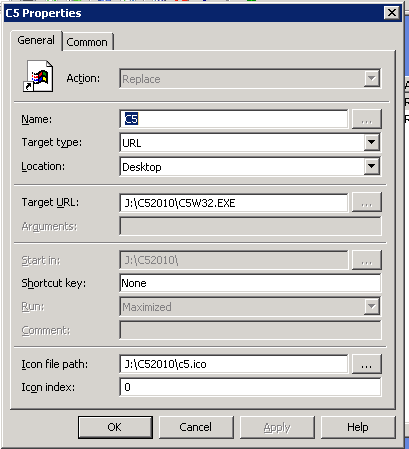
Instead of using File System object, i created a URL Shortcut, still to the exe file. This works, but now the icon was a Internet Explorer Icon.

In GPO you can customize the icon, under icon file path

.


Terminal server, Redirected folders and PDF Creator problems

Today i have installed the programs PDF Creator on a Terminal servers, Windows 2008 R2. But it will only run under the administrators account.

Some search for errors lead me to that it could be that PDF Creator creates is temp files under <temp>\PDFCreator, but my user have redirected folders, so it was under a network shares. It seams that PDFCreator have some troubles with this, so I change the temp location in the registry database, and its now working for my users.

You need to change:

KEY_CURRENT_USER\Software\PDFCreator\Program\PrinterTemppath
“PrinterTemppath”=”<temp>PDFCreator\”

Changed the value to “C:\PDFCreator\”

Change also:
HKEY_USERS\.DEFAULT\Software\PDFCreator\Program\
“PrinterTemppath”=”<temp>PDFCreator\

Changed the value to “C:\PDFCreator\”

Then create a folder on c:\ with the name of PDFCreator, and set security so that all yours terminal servers users have modify access to this folders.