Author Archives: admin

Problems with FortiClient and no traffic after succesful connection

I have just help a customer, with a problem with his FortiClient.
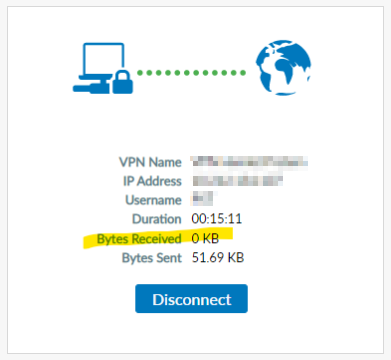
The Forticlient did connect successful, and everything looks good, but there are no traffic iis recieved.

The OS of the customer where Windows 11.

The solutions where quite simple, just uninstall this microsoft update: KB2693643
Read more about the error here: https://community.fortinet.com/t5/FortiClient/Troubleshooting-Tip-VPN-SSL-connected-but-no-IP-address-in/ta-p/248143

Connect to 365 Exchange mailbox with IMAP and OAuth

Source: https://stackoverflow.com/questions/73370661/php-connect-mailbox-office-365-with-oauth

1 – Configure your mail box in Azure

(I didn’t do this part so i can’t help you more than that ! )

Edit : Thanks to parampal-poonithis link explains how to configurate in azure.

You will need :

  • The client Id
  • The tenant Id
  • The secret client
  • The redirect Uri (Set it to http://localhost/test_imap)

2 – Grab a code to get a token

Construct this url :

$TENANT="5-48...";
$CLIENT_ID="c-9c-....";
$SCOPE="https://outlook.office365.com/IMAP.AccessAsUser.All";
$REDIRECT_URI="http://localhost/test_imap";

$authUri = 'https://login.microsoftonline.com/' . $TENANT
           . '/oauth2/v2.0/authorize?client_id=' . $CLIENT_ID
           . '&scope=' . $SCOPE
           . '&redirect_uri=' . urlencode($REDIRECT_URI)
           . '&response_type=code'
           . '&approval_prompt=auto';

echo($authUri);

Go to the link, connect to the mail box with the passeword. Once it done, you will be redirect to : http://localhost/test_imap?code=LmpxSnTw…&session_state=b5d713….

Save the code (remove the ‘&’ at the end !) and the session state inside the url. These codes expired after a few hours !

When you are on this new page look inside the url, you should have htp:/localhost/test_imap?code=MyCodeIShouldSave&session_state=MySessionIShouldSave This is the $CODE and the $SESSION you are looking for for the step 3

3 – Get an access token

$CLIENT_ID="c-9c-....";
$CLIENT_SECRET="Y~tN...";
$TENANT="5-48...";
$SCOPE="https://outlook.office365.com/IMAP.AccessAsUser.All offline_access";
$CODE="LmpxSnTw...";
$SESSION="b5d713...";
$REDIRECT_URI="http://localhost/test_imap";

echo "Trying to authenticate the session..";

$url= "https://login.microsoftonline.com/$TENANT/oauth2/v2.0/token";

$param_post_curl = [ 
 'client_id'=>$CLIENT_ID,
 'scope'=>$SCOPE,
 'code'=>$CODE,
 'session_state'=>$SESSION,
 'client_secret'=>$CLIENT_SECRET,
 'redirect_uri'=>$REDIRECT_URI,
 'grant_type'=>'authorization_code' ];

$ch=curl_init();
curl_setopt($ch,CURLOPT_URL,$url);
curl_setopt($ch,CURLOPT_POSTFIELDS, http_build_query($param_post_curl));
curl_setopt($ch,CURLOPT_POST, 1);
curl_setopt($ch,CURLOPT_RETURNTRANSFER, true);

$oResult=curl_exec($ch);

echo "result : \n";

var_dump($oResult);

The access_token given in response is going to work only for a few hours. ( If your script is going to be launch on a daily basic you need to recreate a token. I’m going to show you how in the part 5 ! Save the refresh_token inside $oResult. (It are in the middle of the output).
If you don’t have the “refresh_token” you have forgot to put “offline_access” in the scope)

4 – Connect to the mail box

Now choose your favorite library 😉 ! We will use webklex/php-imap for this example (https://github.com/Webklex/php-imap)

include __DIR__.'/vendor/autoload.php'; 
    
use Webklex\PHPIMAP\ClientManager;

$access_token="EH.j8s5z8...";
    
//$cm = new ClientManager($options = ["options" => ["debug" => true]]);                     
$cm = new ClientManager();                      
$client = $cm->make([
    'host'          => 'outlook.office365.com',                
    'port'          => 993,
    'encryption'    => 'ssl',
    'validate_cert' => false,
    'username'      => '[email protected]',
    'password'      => $access_token,
    'protocol'      => 'imap',
    'authentication' => "oauth"
]);

try {
    //Connect to the IMAP Server
    $client->connect();
    $folder = $client->getFolder('INBOX');
    $all_messages = $folder->query()->all()->get();
    //DONE ! :D     
} catch (Exception $e) {
    echo 'Exception : ',  $e->getMessage(), "\n";

5 – Connecting to the mail box everyday

include __DIR__.'/vendor/autoload.php'; 
    
use Webklex\PHPIMAP\ClientManager;

$CLIENT_ID="c-9c-....";
$CLIENT_SECRET="Y~tN...";
$TENANT="5-48...";
$REFRESH_TOKEN="EebH9H8S7...";

$url= "https://login.microsoftonline.com/$TENANT/oauth2/v2.0/token";

$param_post_curl = [ 
 'client_id'=>$CLIENT_ID,
 'client_secret'=>$CLIENT_SECRET,
 'refresh_token'=>$REFRESH_TOKEN,
 'grant_type'=>'refresh_token' ];

$ch=curl_init();

curl_setopt($ch,CURLOPT_URL,$url);
curl_setopt($ch,CURLOPT_POSTFIELDS, http_build_query($param_post_curl));
curl_setopt($ch,CURLOPT_POST, 1);
curl_setopt($ch,CURLOPT_RETURNTRANSFER, true);
//ONLY USE CURLOPT_SSL_VERIFYPEER AT FALSE IF YOU ARE IN LOCALHOST !!!
curl_setopt($ch,CURLOPT_SSL_VERIFYPEER, false);// NOT IN LOCALHOST ? ERASE IT !

$oResult=curl_exec($ch);

echo("Trying to get the token.... \n");

if(!empty($oResult)){
    
    echo("Connecting to the mail box... \n");
    
    //The token is a JSON object
    $array_php_resul = json_decode($oResult,true);
    
    if( isset($array_php_resul["access_token"]) ){

        $access_token = $array_php_resul["access_token"];

        //$cm = new ClientManager($options = ["options" => ["debug" => true]]);                     
        $cm = new ClientManager();                      
        $client = $cm->make([
            'host'          => 'outlook.office365.com',                
            'port'          => 993,
            'encryption'    => 'ssl',
            'validate_cert' => false,
            'username'      => '[email protected]',
            'password'      => $access_token,
            'protocol'      => 'imap',
            'authentication' => "oauth"
        ]);
        
        try {
            //Connect to the IMAP Server
            $client->connect();
        }catch (Exception $e) {
            echo 'Exception : ',  $e->getMessage(), "\n";
        }

    }else{
        echo('Error : '.$array_php_resul["error_description"]); 
    }
}

It will only connect to the mailbox, you then need to write some more code to get access to the mail. Look at https://github.com/Webklex/php-imap

Clear mssql cache

If you for example need to test a query against two SQL servers hardware, its a good idea to clear the cache first.
This query can do this:

DBCC DROPCLEANBUFFERS; 

-- Removes all elements from the plan cache.

DBCC FREEPROCCACHE;

-- Displays the number of milliseconds required to parse, compile, and execute each statement.

SET STATISTICS TIME ON; 

-- Display information regarding the amount of disk activity generated by Transact-SQL statements.

SET STATISTICS IO ON; 

Computer won’t join Azure AD

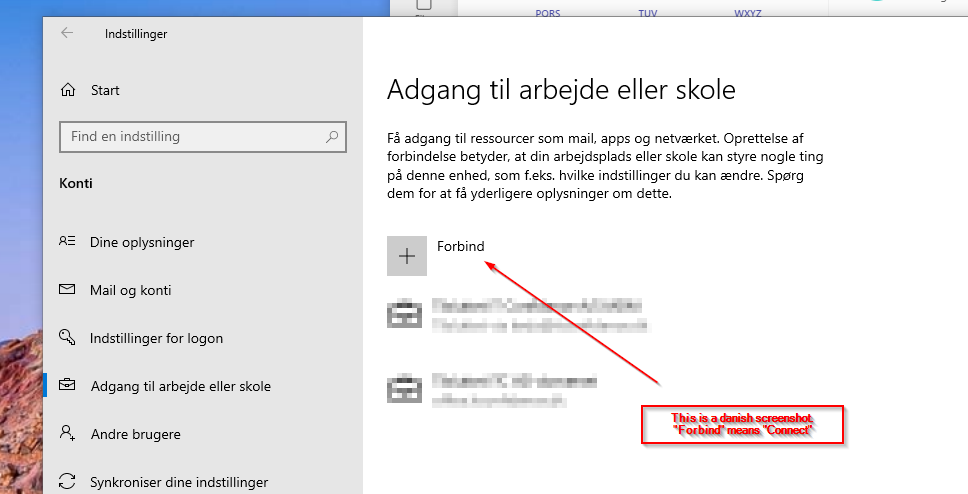
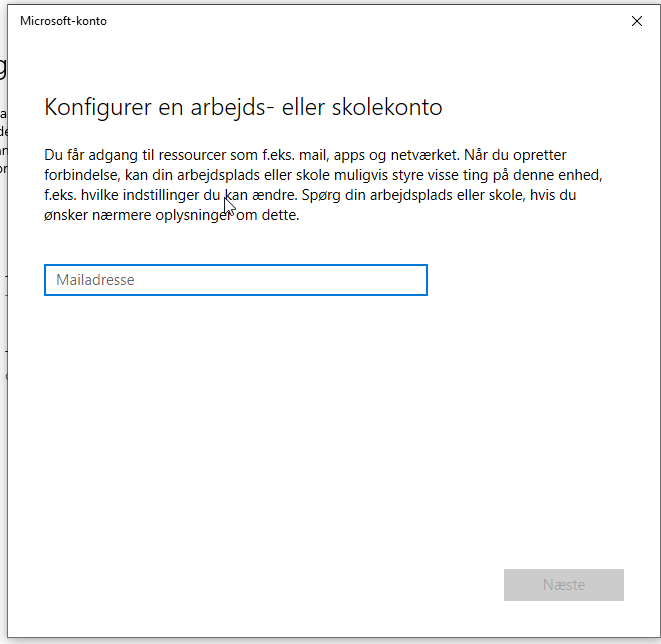
When going to Settings -> Accounts -> Access work or school, og push the “connect” buttom. I could just see that the popup, asking for my mail address, just popup, but then disapear again very quick.

Starting a powershell with administrative rights, and type in the command

Get-AppXPackage | foreach {Add-AppxPackage -DisableDevelopmentMode -Register "$($_.InstallLocation)\AppXManifest.xml"}

And let it run, it toke 1-3 minutes to complete, but when it completed i could push the buttom, and the popup show just fine.

Again this is a danish screenshot.


Veeam backup and Replication – Failed to call RPC function ‘Vss.TruncateSqlLogs’

Today i have this warning in my Veeam Backup and Replication backup job log, for an SQL server:
Failed to finalize guest processing. Details: Failed to call RPC function ‘Vss.TruncateSqlLogs’: Error code: 0x80004005. Failed to invoke func [TruncateSqlLogs]: Unspecified error. Failed to process ‘TruncateSQLLog’ command. Failed to truncate SQL server transaction logs for instances: . See guest helper log.

I found this in the event viewer on the SQL server:
BACKUP failed to complete the command BACKUP LOG [databasename]. Check the backup application log for detailed messages.

So i check the veeam backup log file on the SQL server:
C:\ProgramData\Veeam\Backup
File VeeamGuestHelper_Lastdatefile.log

Where i see this:

19-12-2022 02:08:56 5080 Database found: [databasename]. Recovery model: 1. Is readonly: false. State: 0.
19-12-2022 02:13:56 5080 WARN Cannot truncate SQL logs for database: [databasename]. Code = 0x80040e31
19-12-2022 02:13:56 5080 WARN Code meaning = IDispatch error #3121
19-12-2022 02:13:56 5080 WARN Source = Microsoft OLE DB Driver for SQL Server
19-12-2022 02:13:56 5080 WARN Description = Query timeout expired
19-12-2022 02:13:56 5080 WARN No OLE DB Error Information found: hr = 0x80004005

What i did to fix this error is that i give the user: NT AUTHORITY\SYSTEM the rights db_backupoperator rights to the specific database, that fault.

And also change this timeout value in regedit:

Windows Registry Editor Version 5.00

[HKEY_LOCAL_MACHINE\SOFTWARE\Veeam\Veeam Backup and Replication]
"SqlExecTimeout"=dword:00000600
"SqlLogBackupTimeout"=dword:00003600
"SqlConnectionTimeout"=dword:00000300

And also under WOW6432Node

Windows Registry Editor Version 5.00

[HKEY_LOCAL_MACHINE\SOFTWARE\WOW6432Node\VeeaM\Veeam Backup and Replication]
"SqlLogBackupTimeout"=dword:00003600
"SqlExecTimeout"=dword:00000600
"SqlConnectionTimeout"=dword:00000300

Then try to running the job again.

Expand an EXT4, on a SCSI device

If you have vmware ESXi or Microsoft Hyper-v, you can expand a disk, from the hypervisor console, very simple. But afterwards the partition the servers is not expand.
It is always a good idea to create a Snapshot/checkpoint before. Just remember, that the disc can’t be expanded in Hyper-v when there are a checkpoint. So first expand the disk in Hyper-v and then create a snapshot.

To do this you first need to rescan the disk for change

echo "1" > /sys/class/block/sda/device/rescan

Replace sda with the disk name.
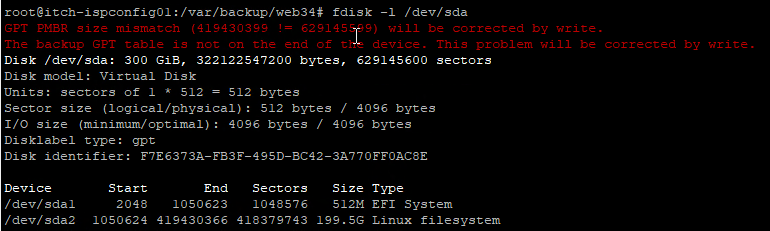
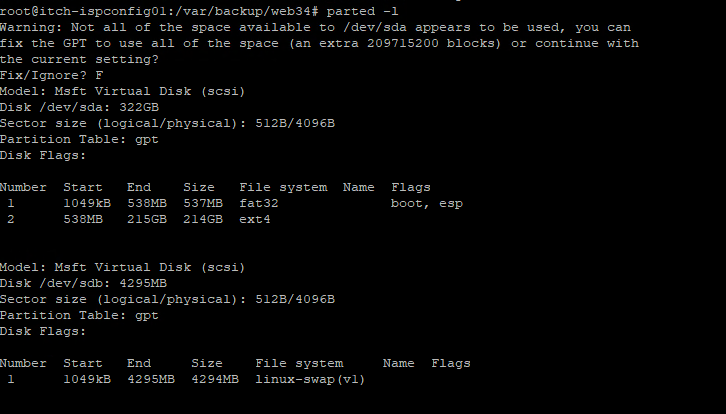
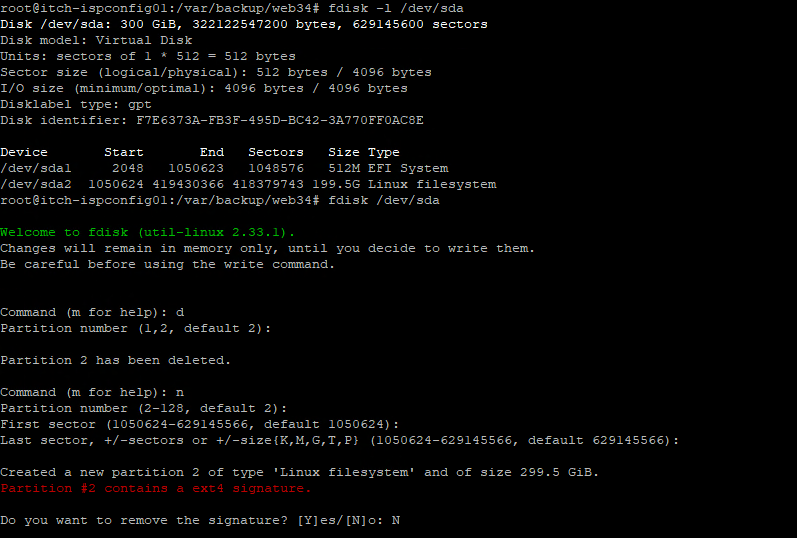
Then you can run fdisk -l /dev/sda, to see the disk information, if you got an error on the top like in the screenshot below

Then you need to repair the disk partition table.

parted -l

After you have check the partition table, you need to delete the old partition, and recreate it

This is done by type fdisk /dev/sda

In the fdisk, you type d to delete, choice the partition, in the example is two. (Beaware that this guide can only be used to expand the last partition on the disk, if you have multiple)
Then you type n to create a new one, and just goes for the default once settings.
In the end type N to not remove the signature.

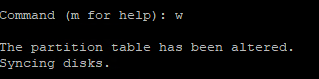
Then you w to save the settings

Then we just have to resize the ext4 information on the disk, this is done by the command resize2fs

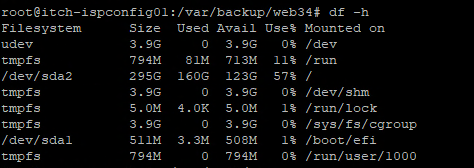
Afterwards you can check that the server have been expand by the command df -h

Here we have expand the disk from 195GB to 295GB.

Get Certificate from remote computers

If you need to get all certificates, from a list of remote computers, you can use this script:

$Servers = "kennethdalbjerg-dc01",
           "kennethdalbjerg-dc02",
           "kennethdalbjerg-exch01",
           "kennethdalbjerg-fs01"
 
  $Results = @()
  $Results = Invoke-Command -cn $Servers {
          $Certs = @{} | Select Certificate,Expired
          $Cert = Get-ChildItem Cert:\LocalMachine\My
          If($Cert){
              $Certs.Certificate = $Cert.subject
              $Certs.Expired = $Cert.NotAfter
          }
          Else{
              $Certs.Certificate = " - "
              $Certs.Expired = " - "
          }
          $Certs
  } | Select-Object @{n='ServerName';e={$_.pscomputername}},Certificate,Expired
 
  #Display results in console
  $Results | Sort-Object Expired -Descending
 
  #Save results to CSV file
  $Results | Sort-Object Expired -Descending | Export-Csv -Path C:\users\$env:username\desktop\cert_results.csv -NoTypeInformation -Force
 
  #Open results in new window
  $Results | Sort-Object Expired -Descending | Out-GridView -Title "Final results"

Found groups that a 365 contacts is member of

If you need to found out whitch groups (mailling groups) a contact is member of in Microsoft 365, then you case use these powershell commands:

$getsessions = Get-PSSession | Select-Object -Property State, Name
$isconnected = (@($getsessions) -like '@{State=Opened; Name=ExchangeOnlineInternalSession*').Count -gt 0
If ($isconnected -ne "True") {
Connect-ExchangeOnline
}

$dn = (Get-MailContact "[email protected]").DistinguishedName
Get-Recipient -Filter "Members -eq '$dn'"

Replace [email protected] with yours mail address.

SNMP OID list for iLO4

Here is a list of SNMP OID list for iLO4, to used in yours monitoring software like Atera.

Fans:
.1.3.6.1.4.1.232.6.2.6.7.1.2.0 (Fan Index)
.1.3.6.1.4.1.232.6.2.6.7.1.3.0 (Fan Locale (1=other, 2=unknown, 3=system, 4=systemBoard, 5=ioBoard, 6=cpu, 7=memory, 8=storage, 9=removable media, 10=power supply, 11=ambent, 12=chassis, 13=bridge card, 14=management board, 15=backplane, 16=network slot, 17=blade slot, 18=virtual)
.1.3.6.1.4.1.232.6.2.6.7.1.4.0 (Fan Present (1=other, 2=absent, 3=present)
.1.3.6.1.4.1.232.6.2.6.7.1.5.0 (Fan Present (1=other, 2=tachOutput, 3=spinDetect)
.1.3.6.1.4.1.232.6.2.6.7.1.6.0 (Fan Speed (1=other, 2=normal, 3=high)
.1.3.6.1.4.1.232.6.2.6.7.1.9.0 (Fan Condition (1=other, 2=ok, 3=degraded, 4=failed)

Temperature:
.1.3.6.1.4.1.232.6.2.6.8.1.2.0 (Temperature Sensor Index)
.1.3.6.1.4.1.232.6.2.6.8.1.3.0 (Temperature Sensor Locale (1=other, 2=unknown, 3=system, 4=systemBoard, 5=ioBoard, 6=cpu, 7=memory, 8=storage, 9=removable media, 10=power supply, 11=ambent, 12=chassis, 13=bridge card)
.1.3.6.1.4.1.232.6.2.6.8.1.7.0 (Threshold Type (1=other, 5=blowout, 9=caution, 15=critical, 16=noreaction)
.1.3.6.1.4.1.232.6.2.6.8.1.4.0 (Temperature Celsius)
.1.3.6.1.4.1.232.6.2.6.8.1.5.0 (TemperatureThreshold)
.1.3.6.1.4.1.232.6.2.6.8.1.6.0 (TemperatureCondition)

CPU:
.1.3.6.1.4.1.232.1.2.2.1.1.1 (CPU Index)
.1.3.6.1.4.1.232.1.2.2.1.1.3 (CPU Name)
.1.3.6.1.4.1.232.1.2.2.1.1.4 (CPU Speed in MHz)
.1.3.6.1.4.1.232.1.2.2.1.1.5 (CPU Step)
.1.3.6.1.4.1.232.1.2.2.1.1.6 (CPU status (1=unknown, 2=ok, 3=degraded, 4=failed, 5=disabled)
.1.3.6.1.4.1.232.1.2.2.1.1.15 (Number of enabled CPU cores)
.1.3.6.1.4.1.232.1.2.2.1.1.25 (Number of available CPU threads)
.1.3.6.1.4.1.232.1.2.2.1.1.26 (CPU power status (1=unknown, 2=Low Powered, 3=Normal Powered, 4=High Powered)

Logical Drives:
.1.3.6.1.4.1.232.3.2.3.1.1.2.0 (Logical Drive Index)
.1.3.6.1.4.1.232.3.2.3.1.1.1.0 (Logical Drive Controller)
.1.3.6.1.4.1.232.3.2.3.1.1.3.0 (Logical Drive Fault Tolerance (1=other, 2=none, 3=RAID 1/RAID 1+0 (Mirroring), 4=RAID 4 (Data Guard), 5=RAID 5 (Distributed Data Guard), 7=RAID 6 (Advanced Data Guarding), 8=RAID 50, 9=RAID 60, 10=RAID 1 ADM (Advanced Data Mirroring), 11=RAID 10 ADM (Advanced Data Mirroring with Striping))
.1.3.6.1.4.1.232.3.2.3.1.1.9.0 (Logical Drive Size in Mb)
.1.3.6.1.4.1.232.3.2.3.1.1.4.0 (Logical Drive Status (1=other, 2=ok, 3=Failed, 4=Unconfigured, 5=Recovering, 6=Ready Rebuild, 7=Rebuilding, 8=Wrong Drive, 9=Bad Connect, 10=Overheating, 11=Shutdown, 12=Expanding, 13=Not Available, 14=Queued For Expansion, 15=Multi-path Access Degraded, 16=Erasing, 17=Predictive Spare Rebuild Ready, 18=Rapid Parity Initialization In Progress, 19=Rapid Parity Initialization Pending, 20=No Access – Encrypted with No Controller Key, 21=Unencrypted to Encrypted Transformation in Progress, 22=New Logical Drive Key Rekey in Progress, 23=No Access – Encrypted with Controller Encryption Not Enabled, 24=Unencrypted To Encrypted Transformation Not Started, 25=New Logical Drive Key Rekey Request Received)
.1.3.6.1.4.1.232.3.2.3.1.1.11.0 (Logical Drive Condition (1=other, 2=ok, 3=degraded, 4=failed)

Drives:
.1.3.6.1.4.1.232.3.2.5.1.1.2.0 (Drive Index)
.1.3.6.1.4.1.232.3.2.5.1.1.5.0 (Drive Bay)
.1.3.6.1.4.1.232.3.2.5.1.1.64.0 (Drive Location)
.1.3.6.1.4.1.232.3.2.5.1.1.3.0 (Drive Vendor)
.1.3.6.1.4.1.232.3.2.5.1.1.51.0 (Drive Serial Number)
.1.3.6.1.4.1.232.3.2.5.1.1.45.0 (Drive Size in Mb)
.1.3.6.1.4.1.232.3.2.5.1.1.65.0 (Drive Link Rate (1=other, 2=1.5Gbps, 3=3.0Gbps, 4=6.0Gbps, 5=12.0Gbps))
.1.3.6.1.4.1.232.3.2.5.1.1.70.0 (Drive Current Temperature)
.1.3.6.1.4.1.232.3.2.5.1.1.71.0 (Drive Temperature Threshold)
.1.3.6.1.4.1.232.3.2.5.1.1.72.0 (Drive Maximum Temperature)
.1.3.6.1.4.1.232.3.2.5.1.1.6.0 (Drive Status (1=Other, 2=Ok, 3=Failed, 4=Predictive Failure, 5=Erasing, 6=Erase Done, 7=Erase Queued, 8=SSD Wear Out, 9=Not Authenticated)
.1.3.6.1.4.1.232.3.2.5.1.1.37.0 (Drive Condition (1=other, 2=ok, 3=degraded, 4=failed)
.1.3.6.1.4.1.232.3.2.5.1.1.9.0 (Drive Reference Time in hours)

iLO NIC:
.1.3.6.1.4.1.232.9.2.5.2.1.1 (iLO location)
.1.3.6.1.4.1.232.9.2.5.1.1.2 (iLO NIC model)
.1.3.6.1.4.1.232.9.2.5.1.1.4 (iLO NIC MAC)
.1.3.6.1.4.1.232.9.2.5.1.1.5 (iLO NIC IPv4)
.1.3.6.1.4.1.232.9.2.5.1.1.9 (iLO NIC speed)
.1.3.6.1.4.1.232.9.2.5.1.1.14 (iLO NIC FQDN)
.1.3.6.1.4.1.232.9.2.5.2.1.2 (Tx bytes)
.1.3.6.1.4.1.232.9.2.5.2.1.3 (Tx packets)
.1.3.6.1.4.1.232.9.2.5.2.1.6 (Tx discard packets)
.1.3.6.1.4.1.232.9.2.5.2.1.7 (Tx error packets)
.1.3.6.1.4.1.232.9.2.5.2.1.9 (Rx bytes)
.1.3.6.1.4.1.232.9.2.5.2.1.10 (Rx packets)
.1.3.6.1.4.1.232.9.2.5.2.1.13 (Rx discard packets)
.1.3.6.1.4.1.232.9.2.5.2.1.14 (Rx error packets)
.1.3.6.1.4.1.232.9.2.5.2.1.15 (Rx unknown packets)

Memory:
.1.3.6.1.4.1.232.6.2.14.13.1.1 (Memory Index)
.1.3.6.1.4.1.232.6.2.14.13.1.13 (Location)
.1.3.6.1.4.1.232.6.2.14.13.1.9 (Manufacturer)
.1.3.6.1.4.1.232.6.2.14.13.1.10 (Part Number)
.1.3.6.1.4.1.232.6.2.14.13.1.6 (Size in Kbytes)
.1.3.6.1.4.1.232.6.2.14.13.1.8 (Memory Technology)
.1.3.6.1.4.1.232.6.2.14.13.1.7 (Memory Type)
.1.3.6.1.4.1.232.6.2.14.13.1.19 (Memory status (1=other, 2=notPresent, 3=present, 4=good, 5=add, 6=upgrade, 7=missing, 8=doesNotMatch, 9=notSupported, 10=badConfig, 11=degraded, 12=spare, 13=partial)
.1.3.6.1.4.1.232.6.2.14.13.1.20 (Memory condition (1=other, 2=ok, 3=degraded, 4=degradedModuleIndexUnknown)